
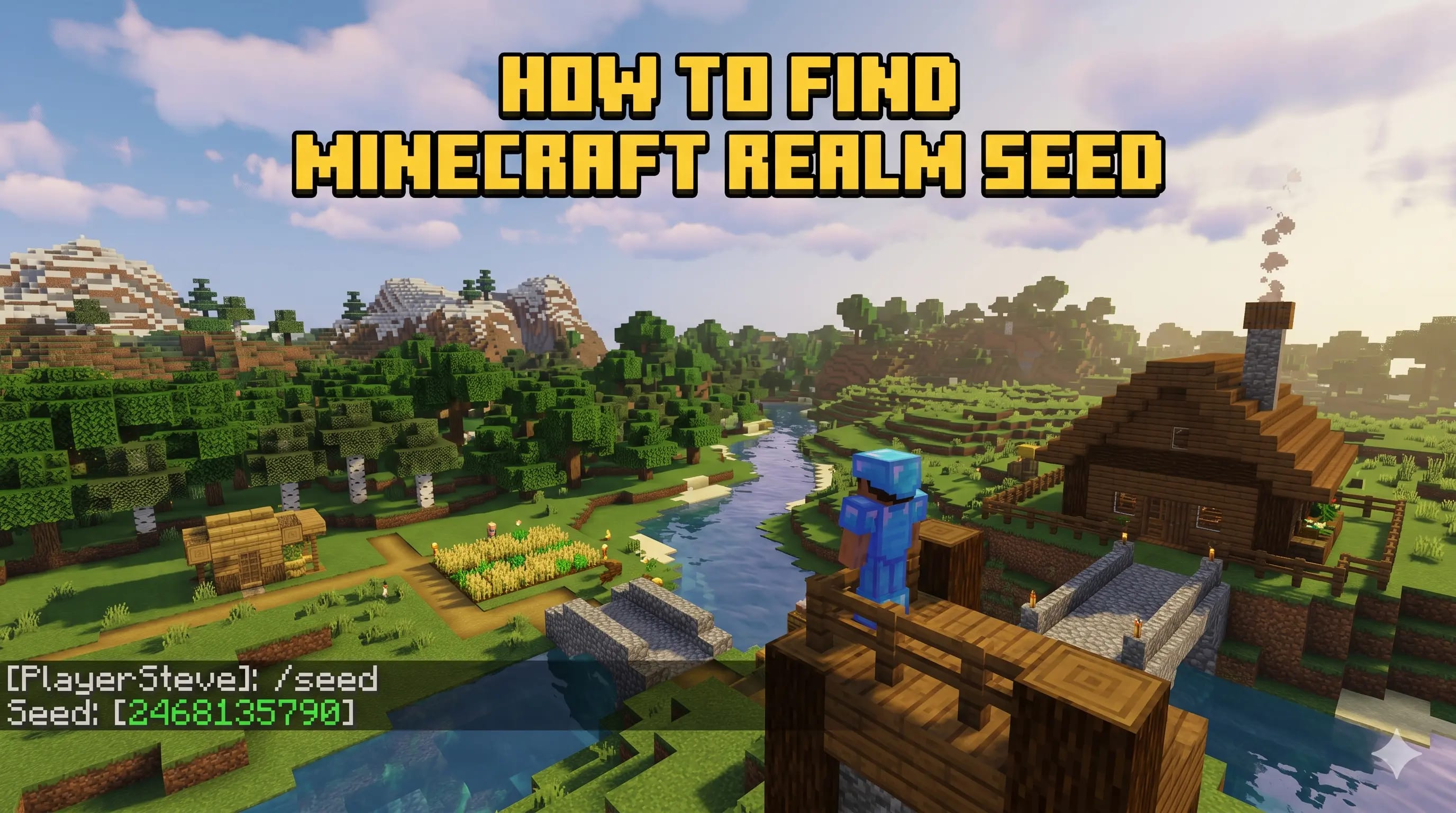
Quick Answer: How Do You Find a Minecraft Realm Seed?
Java Edition: Join the Realm, open chat, type
/seed, and press Enter. If the command is blocked, ask
the Realm owner or an operator with permission to run it.
Bedrock Edition: The Realm owner should download the Realm world, open the downloaded local copy, then check the world settings for the seed. Regular members usually cannot view a Bedrock Realm seed directly.
A Minecraft Realm seed is one of the most useful pieces of information you can have for a world. With it, you can recreate the same terrain in single-player, check biome locations, find strongholds, plan nether travel, scout ancient cities, or preview the world in a seed map viewer. That is why so many players search for how to find the seed of a Minecraft Realm, especially when they are playing on a friend's server and want to understand the world layout.
The important part is that Realms do not all work the same way. Minecraft Java Edition and Minecraft Bedrock Edition handle seed access differently, and your permissions matter. The Realm owner has far more control than a normal member. This guide breaks down every realistic method, when each method works, and what to do if you cannot access the seed yourself.
Before You Start: Realm Seed Rules Explained
A Realm is just a Minecraft world hosted by Mojang's Realms service. The seed belongs to the world, not the subscription. If the owner replaces the Realm with another world, the seed changes because the hosted world changed. If the owner downloads the world, the local copy keeps the same seed as the Realm.
A Realm seed is the same as the world seed. Realms hosting does not create a new seed; it hosts an existing Minecraft world online.
You also need to know your edition. Java Edition is usually easier
because the /seed command exists and can display the seed
in chat when permissions allow it. Bedrock Edition is more restrictive
on Realms, so the most reliable method is for the owner to download
the world and inspect the downloaded copy's settings.
| Edition | Your Role | Best Method | Expected Result |
|---|---|---|---|
| Java | Owner or permitted player | Run /seed in chat |
Seed appears in chat |
| Java | Regular member | Ask the owner to run /seed |
Depends on owner permission |
| Bedrock | Realm owner | Download world, then check local world settings | Seed appears in downloaded world settings |
| Bedrock | Regular member | Ask owner for seed or world download | Usually no direct access |
How to Find the Seed of a Minecraft Java Realm
If your Realm is on Minecraft Java Edition, start with the simplest
method. The /seed command is designed to show the world
seed. In single-player it is straightforward, and on Realms it works
when the account has the required access.
Open Minecraft Java Edition, enter the Realm, and wait until the world has fully loaded.
Press T on your keyboard to open the chat bar.
Type /seed and press Enter. If you have access,
Minecraft prints the world seed in chat.
Keep the full seed exactly as shown, including a minus sign if the seed is negative.
If the command does nothing or says you do not have
permission:
you are probably a regular member. Ask the Realm owner to run
/seed and send the number to you.
Java Realm Owner Alternative: Download the World
If you own the Java Realm and want a backup anyway, download the Realm
world from the Realms configuration menu. Once the world is local, you
can open it in single-player and use /seed. This is also
smart before making big changes to the Realm, because Minecraft's own
Realms guide recommends downloading a world before replacing it.
How to Find the Seed of a Minecraft Bedrock Realm
Bedrock Realms are the part that confuses most players. On Bedrock, do
not expect /seed to behave like it does on Java. The
reliable method is owner-only: download the Realm world, then check
the seed from the downloaded local world's settings.
Use the account that owns the Realm. Member accounts normally cannot download someone else's Realm world.
Open the Realm's management or edit screen, then choose the active world slot you want to check.
Choose Download World. Minecraft will save a local copy to your world list.
Find the downloaded copy in your Worlds list, open its edit/settings screen, and look under the game settings for the seed field.
Use the exact number in Minesite's seed map planner or when creating a new world with the same terrain.
Good news: downloading the Realm world does not delete the live Realm. It creates a local copy. The official Minecraft Realms guide also lists world downloads and backups as supported Realm management options.
Where Is the Seed in Bedrock Settings?
The exact menu labels can vary a little by device and Bedrock interface updates, but the path is usually close to Play → Worlds → Edit downloaded world → Game settings → Seed. On console, mobile, and Windows, look for the pencil/edit icon next to the downloaded local world. If the seed field is not obvious, scroll through the game settings page slowly; it is often lower than players expect.
Can You Find a Realm Seed If You Are Not the Owner?
Usually, no. A normal member on a Realm does not have the same access
as the Realm owner. On Java, a member may be blocked from using
/seed. On Bedrock, a member usually cannot download the
Realm world or inspect protected world settings.
That restriction is reasonable. A seed can expose valuable information about a multiplayer world: stronghold rings, village routes, buried treasure, mansion locations, ancient city clusters, trial chambers, slime chunks, and other resources. On a survival Realm, that can change the balance of the whole server.
Avoid seed cracking and hacked clients. They can break Realm rules, damage trust with other players, and may put your account or device at risk. Ask the owner instead.
What to Ask the Realm Owner
If you need the seed for a legitimate reason, be specific. Realm owners are more likely to help when they know why you need it.
-
Ask them to run
/seedif the Realm is Java Edition. - Ask them to download the world and check the seed if the Realm is Bedrock Edition.
- Ask for a world download if the Realm is ending or moving hosts.
- Ask the group to agree on whether seed maps are allowed for survival gameplay.
What to Do After You Find the Realm Seed
Once you have the seed, you can do far more than simply recreate the spawn area. This is where a good seed becomes a planning tool.
1. Preview the World in a Seed Map Planner
Paste the seed into the Minesite Seed Map Planner to check biomes, terrain, and structure locations in your browser. This is useful for finding a new base location, planning elytra routes, choosing a nether hub layout, or locating rare biomes without wasting hours traveling in the wrong direction.
2. Create a Single-Player Copy
If the owner shared the seed, you can create a new single-player world using that number. For the closest match, use the same Minecraft edition and world generation version. Java and Bedrock have strong terrain parity for many modern numeric seeds, but structures, details, and older versions may still differ.
3. Plan Fair Multiplayer Rules
On a Realm with multiple players, decide how the seed can be used. Some groups allow seed maps for biome hunting but not for loot structures. Others allow everything after the dragon is defeated. Clear rules prevent drama.
Troubleshooting: Why the Realm Seed Is Not Working
The New World Looks Different
Check the edition and version. A seed used in the wrong edition or an older/newer generation version may not match perfectly. Also make sure you copied the entire seed, including any negative sign.
The Bedrock Realm Has No Download Button
Make sure you are using the owner account and editing the correct Realm slot. If you are on a restricted platform, try managing the Realm from another supported device signed into the owner account. Also check backups; Minecraft's Realms interface may allow downloading a backup from the slot's backup list.
The Java Command Says You Do Not Have Permission
Ask the owner to run it. If you are the owner, verify that you are actually connected with the owning account and that the Realm settings have not restricted command access for your role.
The Seed Map Shows Different Structures
Use the correct edition option in the seed map planner. Terrain, biome layout, and structures can differ when the viewer is set to Java but your Realm is Bedrock, or the other way around. Choose the same edition and version range as your Realm whenever possible.
Frequently Asked Questions
Can I find the seed of a Minecraft Realm without being the owner?
Usually not. If you are a regular member, your best option is to ask the Realm owner to share the seed or send a world download.
Does /seed work on Realms?
It works as a Java Edition method when your account has the right access. It is not the normal method for Bedrock Realms.
Can a Bedrock Realm owner see the seed?
Yes. The practical method is to download the Realm world, open the downloaded local world settings, and copy the seed from there.
Is downloading a Realm world safe?
Yes. Downloading creates a local copy of the world. It does not remove the live Realm world. Still, it is smart to avoid replacing or deleting Realm slots unless you have a backup.
Why should I know my Realm seed?
A seed helps you recreate the world, find biomes, plan farms, locate structures, test builds in creative mode, and use tools like Minesite's seed map planner.
Sources and Official References
This guide is based on current Minecraft Realms behavior and official Minecraft support references checked on May 30, 2026.
- Minecraft: Change Your Realm Worlds — official Realm world download and replace guidance.
- Minecraft Help: Copy Your Minecraft Java Edition World Seed — official Java Realm seed help page.
- Minecraft Help: Download a Realms World in Bedrock Edition — official Bedrock Realm download help page.
FOUND YOUR REALM SEED?
Paste it into Minesite's seed map planner to find biomes, villages, ancient cities, strongholds, monuments, trial chambers, and better base locations in seconds.