
Match your world
Select Java or Bedrock and the version closest to the world you are exploring.
Biome map from seed
Enter a seed to find biome regions, borders, and coordinates before you travel. Use it for cherry groves, mushroom islands, badlands, jungles, deserts, snowy peaks, and more.
Open the map, then use biome colors and coordinates to plan your route.
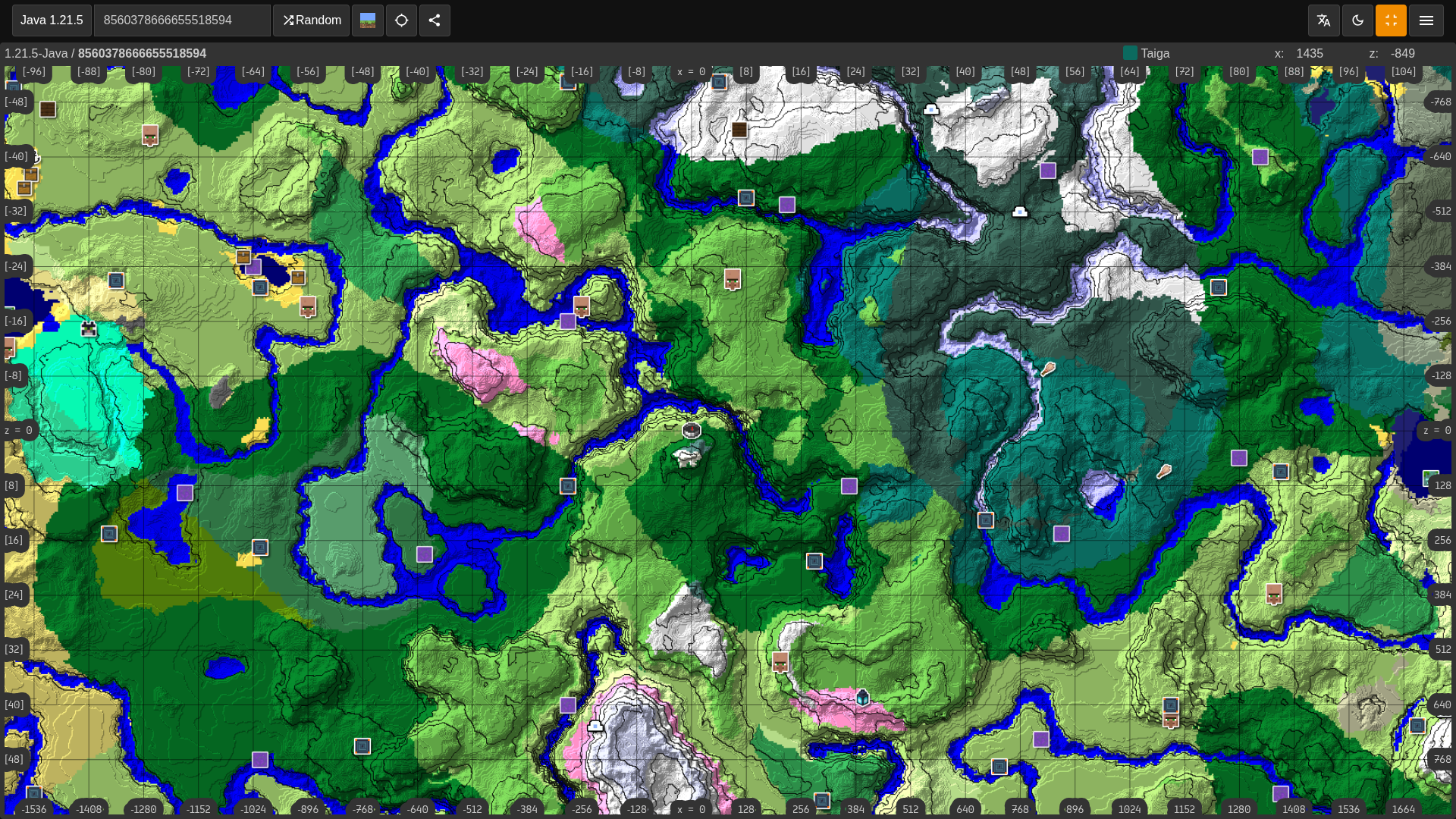
Select Java or Bedrock and the version closest to the world you are exploring.
Pan and zoom the map to compare biome regions around spawn, bases, strongholds, and travel corridors.
Copy X and Z coordinates for rare biomes so you can travel there in survival, creative, or server planning.
Use the biome finder when you want coordinates for cherry groves, mushroom islands, badlands, jungles, deserts, mangrove swamps, snowy peaks, ice spikes, or warm oceans before you travel in-game.
Select the edition and version that match your world so the biome map uses the right generation rules. Java and Bedrock seeds can share numbers, but terrain and structure placement can differ.
A good biome map is most useful when you compare rare terrain with spawn, villages, strongholds, ruined portals, and safe travel paths. That helps you choose a base location instead of only chasing the nearest biome.
The map gives X and Z positions for the area you should travel toward. In-game terrain can vary at the edge of a biome, so check nearby chunks and move around the coordinate if the border is close.
Searches like Minecraft biome finder, seed biome map, cherry grove finder, mushroom island finder, badlands finder, jungle finder, and desert village biome seed usually mean the same thing: you need a quick way to turn a seed into usable biome coordinates. This page keeps the seed form first and the biome guidance close behind it so players can search, map, and compare locations without reading a long article first.
For survival worlds, use the biome finder to check wood types, warm ocean access, snowy terrain, desert temples, trail ruins, and nearby village biomes before you commit to a base. For creative planning, it helps you preview large terrain zones and decide where roads, portals, or builds should go.
If the result does not match your world, confirm the seed, edition, and version first. World generation changes across Minecraft versions, and a Java seed opened as Bedrock can point you to the wrong biome layout.
Finder Guide
A biome finder turns a seed into a terrain plan. Use it to locate rare biomes, compare climate zones, plan building palettes, and decide whether a seed has the wood, water, villages, structures, and travel routes your world needs.
Start near spawn, then widen the search. The nearest rare biome is not always the best choice if it is isolated, dangerous, or too far from structures and resources that support your survival plan.
A good biome result has usable terrain around it. Cherry groves need nearby wood and food, mushroom islands need travel access, jungles need safe paths, deserts benefit from villages or temples, and warm oceans are stronger when they connect to coastal bases.
If the biome does not match in-game, check seed spelling, negative signs, edition, version, and old explored chunks. Biome borders can shift across updates, and terrain near a border can look different a few chunks away.
Searches for seed biome map, cherry grove finder, mushroom island finder, badlands finder, jungle finder, mangrove swamp finder, or Minecraft biome coordinates usually come from players who know the biome they want but not the direction to travel.
Use the form with the exact seed value from your world. When you submit this page, Minesite opens a shareable seed map route with biome layers prioritized for biomes, so you can inspect the most relevant result first and then turn on other layers when needed.
Use X and Z as a destination area, not a single exact block. Biomes cover regions with uneven edges, so walk around the coordinate, zoom the map out, and compare nearby transitions before deciding the best place to build.
For survival, compare biomes with village routes, stronghold distance, caves, rivers, oceans, and Nether portal positions. For creative projects, use the map to plan roads, districts, farms, and color palettes before generating too many chunks.
Java and Bedrock can share seed numbers while producing different terrain details. Keep the map settings matched to your world, especially when a seed came from a video, a server, or a friend using another platform.
Once you find a biome you like, save the map URL and write down nearby landmarks. In-game scouting still matters because trees, caves, water, and cliffs determine whether the area feels useful after you arrive.
Use the village finder to see if a rare biome has nearby settlement support, the seed finder to compare full worlds, and the curated seed library when you want screenshots plus coordinates instead of checking a random seed.